Anesthesia Touch is designed to automatically handle short periods without a network connection, such as a brief network outage or while passing through an area in a facility with poor wireless coverage. Offline Mode only needs to be used when a prolonged period without network access–hours or days–is occurring.
While offline, Anesthesia Touch encrypts and saves all data locally, preparing it to be uploaded when the device is back on a network. During this time, case data charted on the offline device will not be available on the server or to other devices. This means documents cannot be signed or discharged. In addition, pop-up alerts that require information on the server will not appear, such as for concurrency or quality data entry.
Making In-Progress Cases Available Offline
If cases are scheduled or started that need to be continued while offline, Anesthesia Touch can save existing cases locally before going offline.
To save cases locally, login to Anesthesia Touch while online and do the following:
- In the Patient List, select Others > Make Cases Available Offline
- The Patient List will display checkboxes in each appointment row. Select case checkboxes for any case that should be available offline
- When all needed cases are checked, select “Done” or “Save”
- Logout and proceed to enable "Offline Mode"
Enabling Offline Mode
To enable Offline Mode, log out, if not already, and do the following:
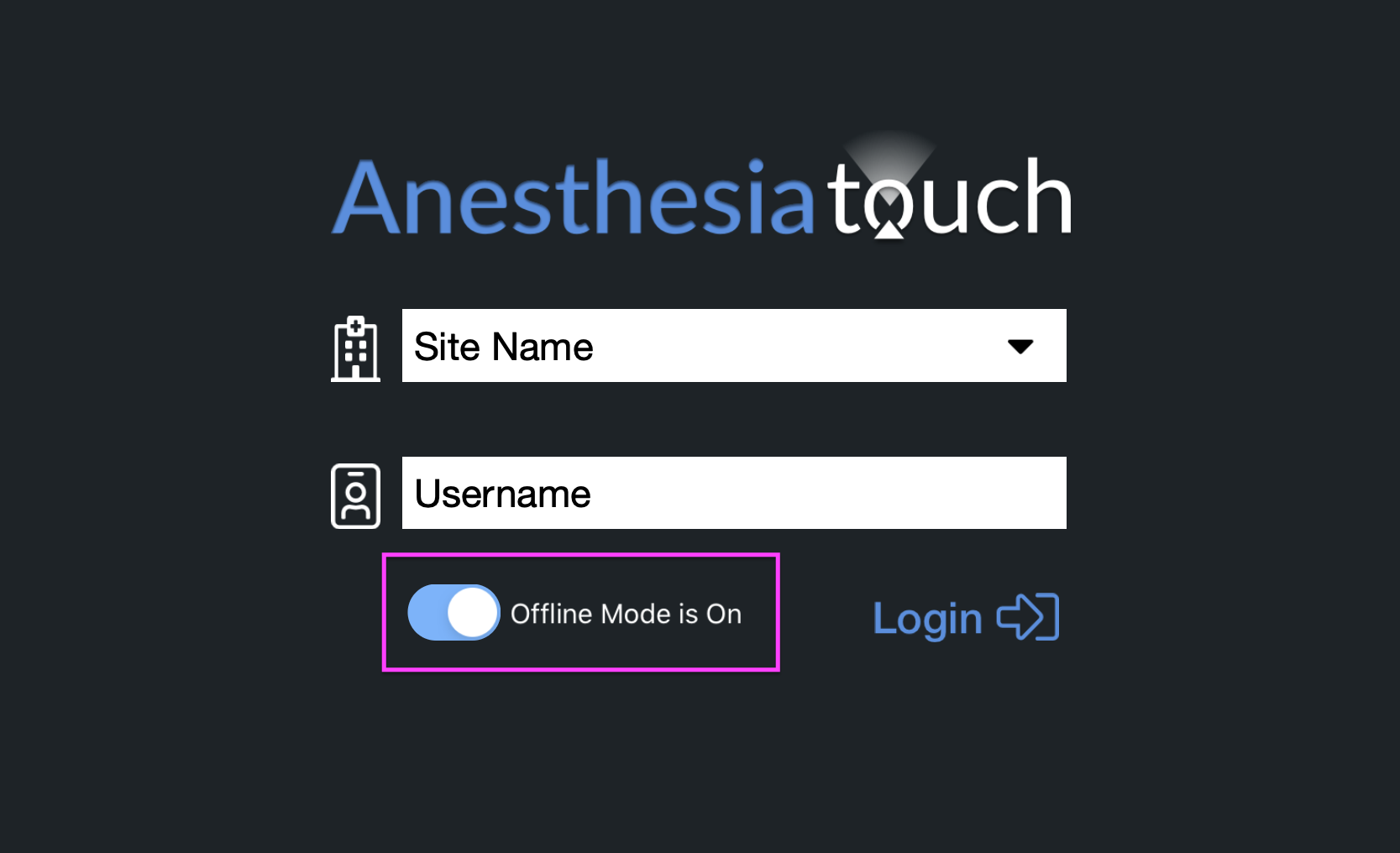
- In the login screen, below the username toggle “Offline Mode” to be “On”
- To proceed, enter a username and password and select “Login” as normal
- Chart as normal, but note:
- New patients must begin an IntraOp Record, using the "New Patient" button in the toolbar
- Documents cannot be finished (e.g., signed) until back online
- When completed charting, logout as usual
The same user account must login to upload offline data.
Uploading Data and Resuming Online Charting
To upload all data charted while offline, log out of Anesthesia Touch and do the following:
- On the login screen, below the username toggle “Offline Mode” to be “Off”
- Enter a username and password and select “Login” as normal
- After logging in, in the Patient List, at the bottom of the screen select the “Upload” icon in the footer
- Resume charting as normal
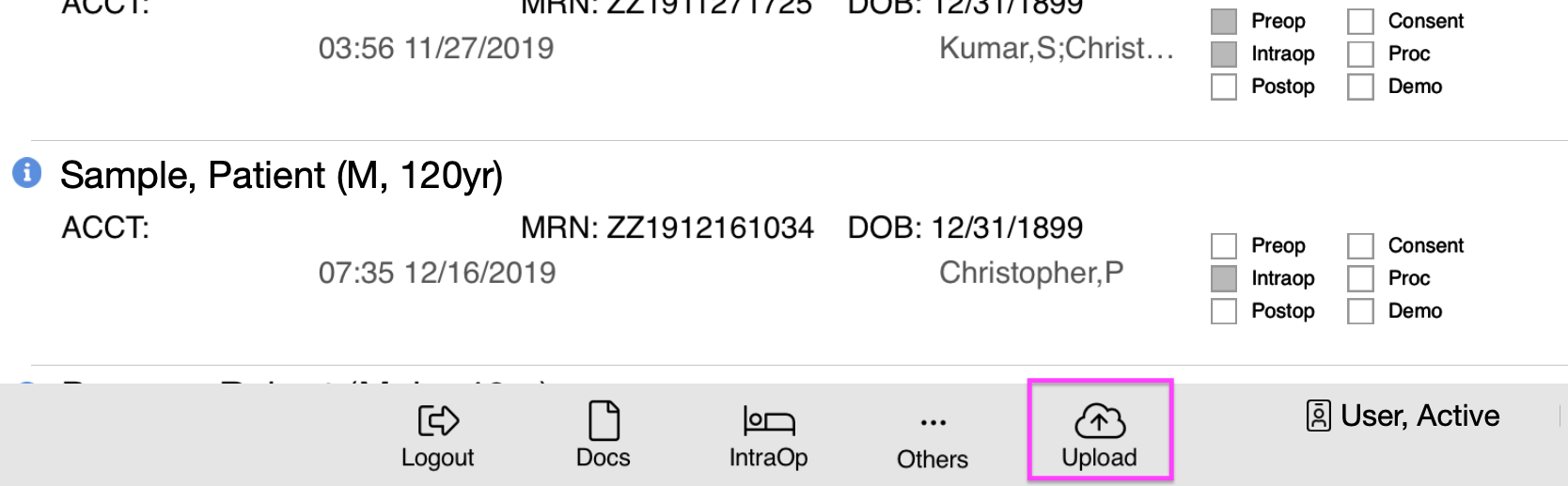
Anesthesia Touch will begin uploading all documents and other cases on the server will begin appearing in the Patient List.
Comments
0 comments
Article is closed for comments.