This article describes the functionality available in Anesthesia Touch's WebAdmin to activate, delete, or migrate documents between visits. For users with the correct permissions, this is accessible in WebAdmin from the sidebar:
- In a browser, login to WebAdmin, e.g., yoursite.plexus.cloud
- In the sidebar, select "Manage Documents"
If you do not see "Manage Documents" speak with your system's IT administrator about your permissions or upgrading to the latest version of Anesthesia Touch's WebAdmin.
Manage Documents Functionality
- Activate or Delete a visit's IntraOp Record
- Activate or Delete a visit's Documents
- Migrate the IntraOp, PreOp, or other documents between visits
Step 1: Search for the Patient Visit
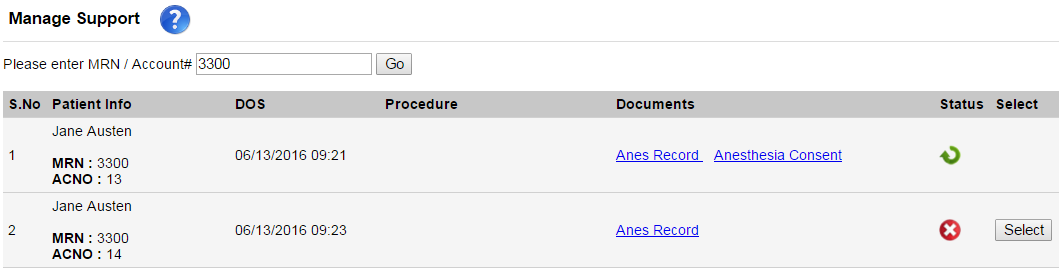
Search for the MRN or Account number you wish to migrate. The matching visits found will be listed along with the Anesthesia Record and documents.
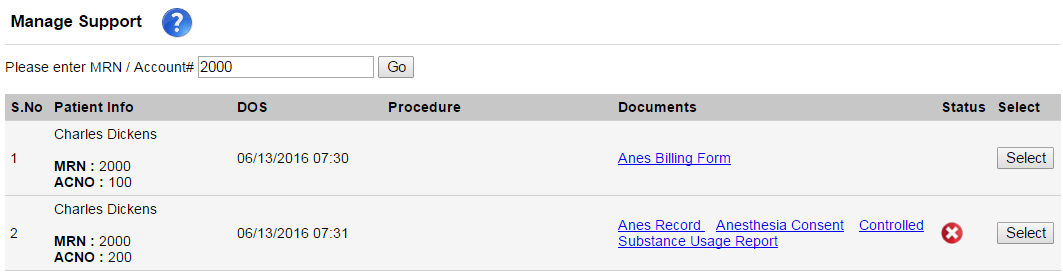
Select the visit you wish to migrate by clicking on the chosen visit's “Select” button (on the right). A visit can also be deleted or activated using the red "X" and green arrow buttons, respectively,  or
or  .
.
The "Select" button may not be displayed for the following reasons:
- The visit may not have any documents or an Anesthesia Record
- The visit may not be in active status
Step 2: Select the Record to Migrate
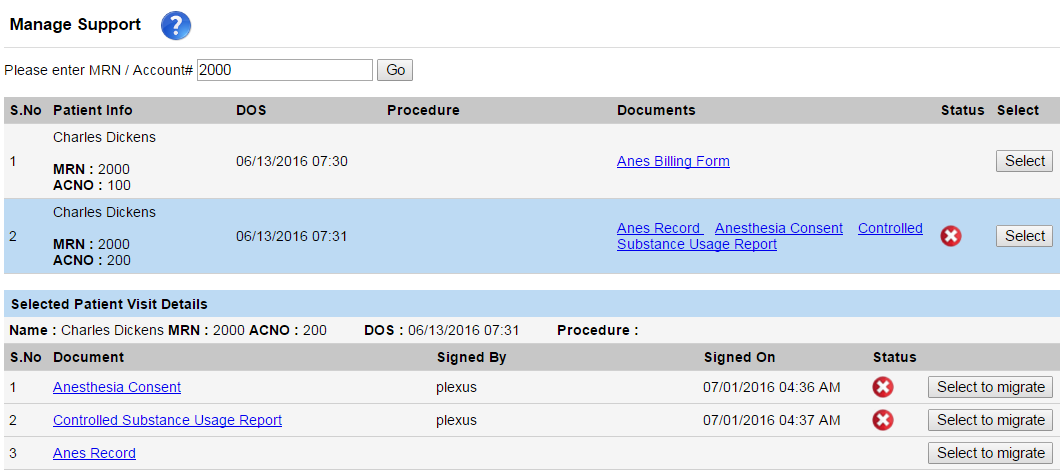
A list of documents for the visit selected [highlighted in the first table] is displayed below. Select the relevant record to migrate from the second grid using the “Select to migrate” button.
An individual document can also be deleted or activated using the or buttons.
Step 3: Select the Destination Patient Visit to Migrate the Selection
After clicking the “Select to migrate” button enter the MRN or Account number in the textbox and search for the destination visit to which the chosen record is to be migrated.
The record can be migrated to a different account with the same MRN; in this case check the “Sam MRN / Account No." checkbox to find matching records.
The search results are displayed in a grid. Once correct, click on the “Switch” button to complete the migration.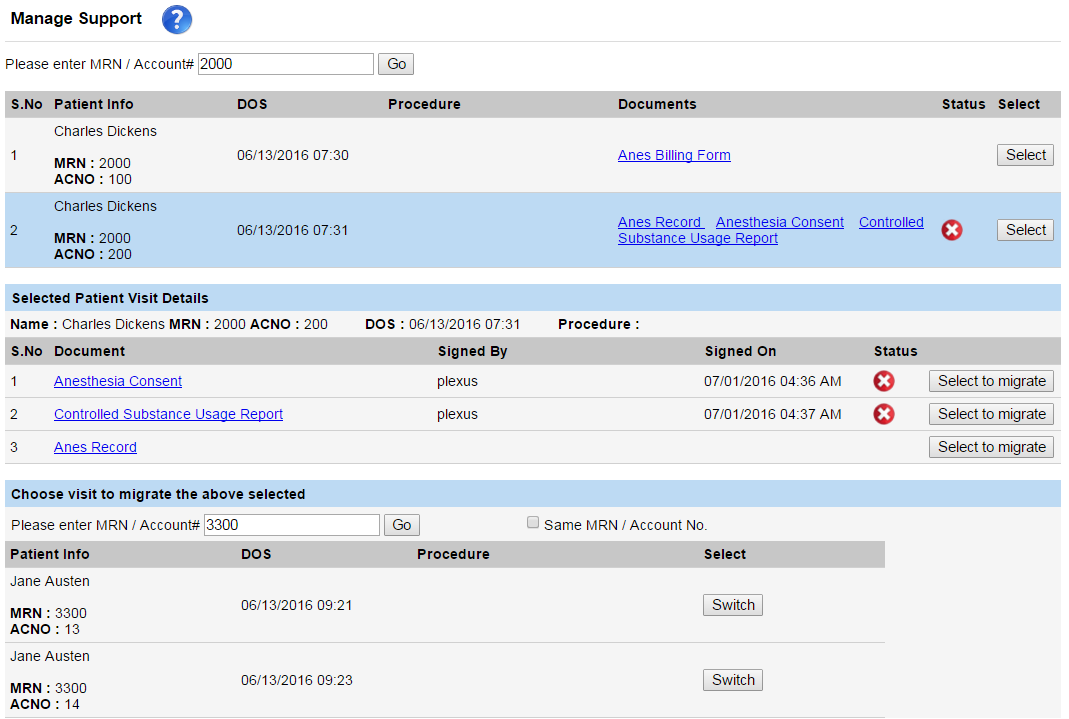
Replacing Documents
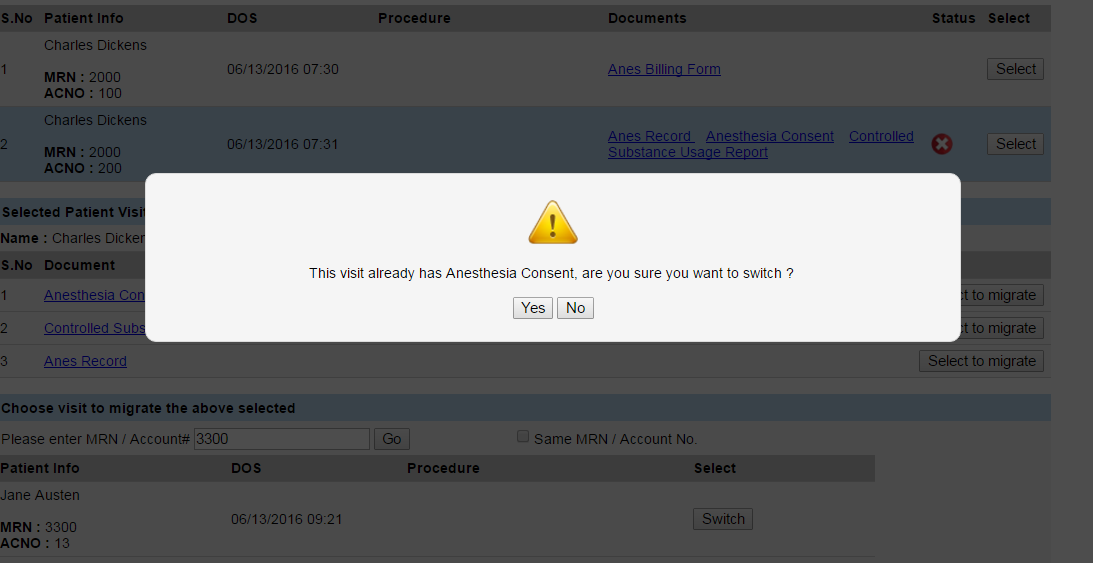
If the destination visit already contains the same Anesthesia Record or document, WebAdmin will display an alert.
- Clicking "Yes" will deactivate the existing record and switch the selected documents
- Clicking "No" will cancel the switch
Confirming the Migration
After switching documents, the page lists the destination MRN inclusive of the migrated items.
Comments
0 comments
Article is closed for comments.